In this article, we’ll show you how to combine an open window sensor with your Tado thermostats using Apilio. This feature is often requested by Tado customers, but Tado itself does not offer a window sensor to complement the thermostats. While other integration platforms like Google Home, Alexa or Apple Home can turn a Tado thermostat on or off, Apilio can turn off your Tado valve and resume it to “auto mode” once the window is closed!
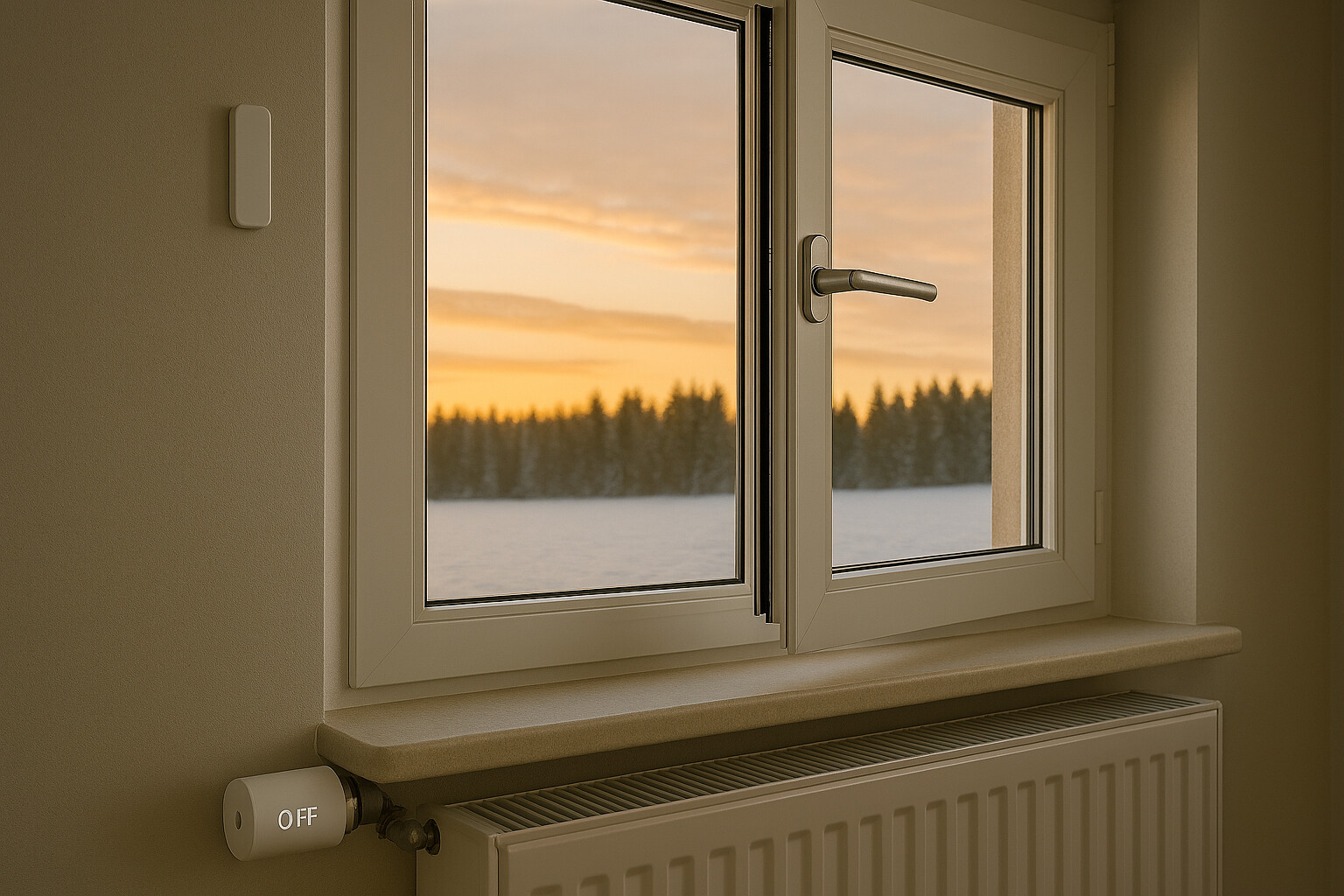
AI generated picture with mistakes

Why use window sensors with Tado?
Open window sensors detect the opening status of your window much more precisely than the built-in detection feature which relies on sudden temperature changes.
How the Integration Works with Apilio
Apilio connects to Tado and some window contact sensors via cloud interfaces, so you don’t need any additional hardware besides the contact sensor.
There are three categories of window sensors that work with Apilio:
- Tuya (SmartLife) based sensors (see blow on how to buy them)
- Sensors that work with IFTTT
- Any other sensor/source that can trigger a web hook
A Tuya based sensor is the easiest and most straightforward, making it the preferred choice for most users. Some models connect via WiFi, sparing you the need to buy an extra hub.
IFTTT is a flexible alternative if you already use it or have compatible devices, but it requires a bit more setup. You can create a custom device or variable in Apilio representing your window contact sensor and link it to IFTTT.
If you don’t want to use either Tuya or IFTTT, you can create a custom device or variable and update its status via webhooks (e.g. from Apple Home).
Setting up the logic for one room
Prerequisites
Getting the window sensor ready
- If you want to use Tuya devices, set it up, connect Apilio and Tuya, and sync the devices.
- If you want to use IFTTT, create a custom device and attribute and link it to IFTTT applets.
- If you want to use webhooks, create a custom device and set up the web hooks.
Tado connection established
Step 1: Create the condition
Create a condition for the window status called “window_closed” that checks the window sensor status. If you use a Tuya or custom device, create a “Device condition.” If you have the status in a boolean variable, create a boolean condition.
Step 2: Create the logicblock
- Create a logicblock named “Room heating.” Select the condition created in Step 1.
- For the positive action, create a Tado action using the command “Resume Auto Mode.”
- For the negative action, create a Tado action using the command “Turn off".
With Apilio, you can customize your Tado system to make your smart home even smarter. Give it a try and share your experiences in our community! 
How to find Tuya-powered devices
Finding Tuya-powered devices is not straightforward but easy with a little trick. Tuya acts as an IoT platform for thousands of different brands rather than just a single manufacturer. You can find them on major e-commerce sites by search for the keyword “Tuya” (e.g. “Tuya window sensor”) or, alternatively, by identifying products that work with the Smart Life or Tuya Smart apps.
To have all Tuya-powered devices in one account/app, we recommend to use the generic Tuya app for all devices, regardless of the brand: Android, iOS