Apilio connects to AI assistants like ChatGPT and Claude, letting you manage your automations through natural conversation. You can read and update variables, control logicblocks, inspect device states, and build complete automation rules - all by describing what you want in plain language.
Setting up the connection
ChatGPT
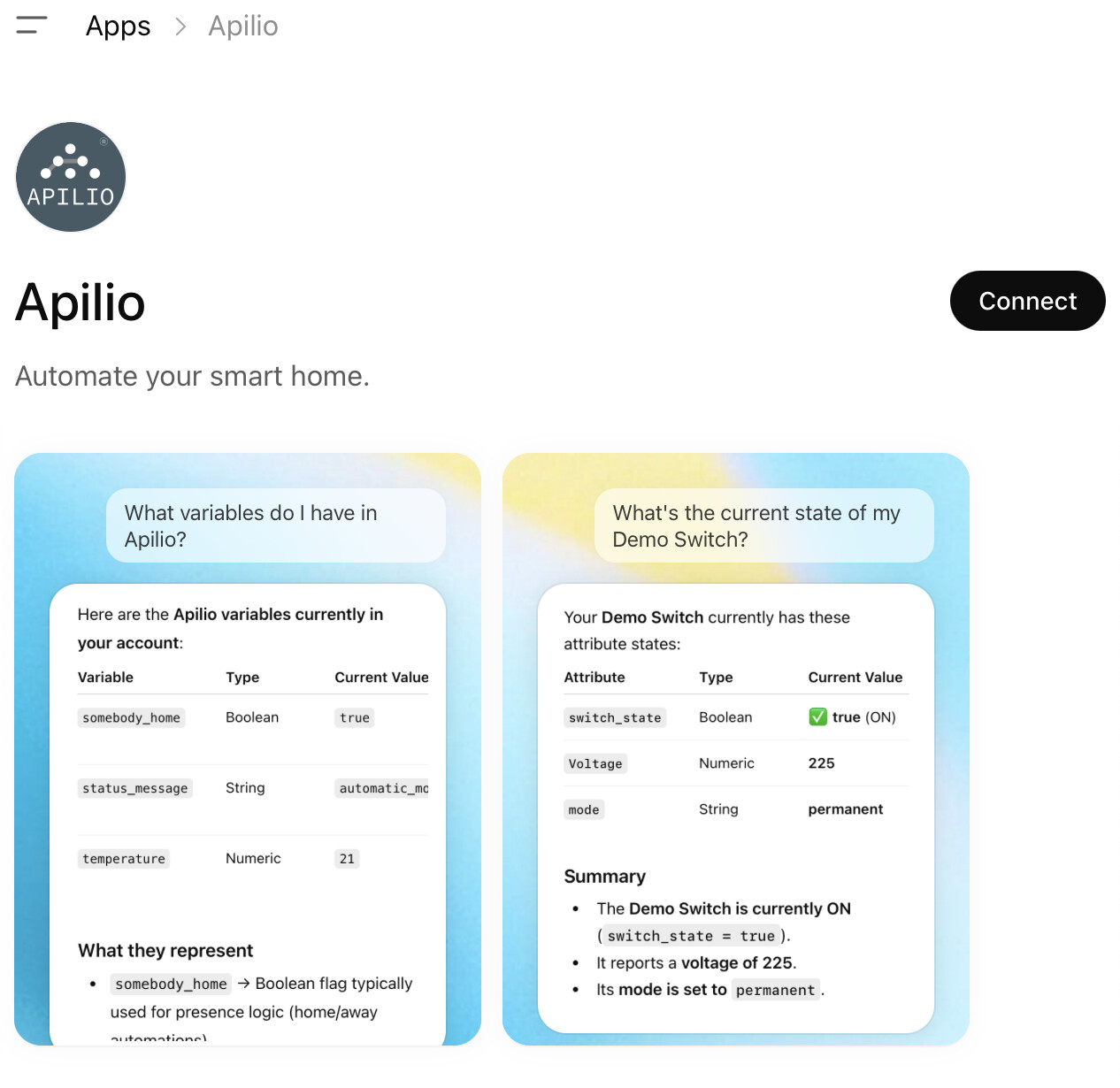
- Open ChatGPT and go to Settings → Apps. Search for Apilio and click Connect. Here is also a direct link to the Apilio App.
-
A sign-in window opens. Log in with the same account you use for Apilio.
-
Authorize the connection. ChatGPT will confirm when the app is active.
You can now start a new conversation and use Apilio directly.
Disconnecting: Go to ChatGPT Settings → Apps, find Apilio, and click Disconnect. This does not affect your Apilio account or any automations.
What you can do
The most powerful use is building complete automations from a single description. Just tell the AI assistant what you want to automate — it will create the conditions, actions, and logicblock for you in one conversation, asking for confirmation before making any changes.
Create an automation that checks every weekday at 11pm whether my Demo Switch is still on, and if so turns it off and sets status_message to ‘Switch turned off for the night’.
You can also work with individual components:
Variables
-
List variables — “Show me all my variables and their current values.”
-
Get a variable — “What is the current value of my temperature variable?”
-
Update a variable — “Set somebody_home to true.”
Logicblocks
-
List logicblocks — “Show me all my automations and whether they are active.”
-
Trigger a logicblock — “Manually run my Evening routine logicblock now.”
-
Activate / deactivate a logicblock — “Disable my Watering Schedule automation.”
-
Create a logicblock — “Create an automation called Morning Check.”
Devices
-
List devices — “What devices do I have connected in Apilio?”
-
Inspect a device — “What is the current state of my Demo Switch?”
-
Create a virtual device — “Create a new virtual device called Weather Station.”
-
Add a device attribute — “Add a numeric attribute called temperature to my Weather Station device.”
Conditions
-
Create a device condition — “Create a condition that is true when my Demo Switch is on.”
-
Create a time condition — “Create a condition that triggers every weekday at 7am.”
Actions
-
Add a notification action — “Add an email notification to my Morning Check logicblock with the subject ‘Good morning’.”
-
Add an Apilio action — “Add an action to my Evening routine that sets somebody_home to false.”
-
List IFTTT actions — “Show me all the IFTTT actions I have set up.”
-
Add an IFTTT action — “Add an IFTTT action to my logicblock that triggers the event lights_off.”
-
Add an Alexa action — “Add an Alexa action to my Bedtime logicblock.”
-
Add a Tado action — “Add an action to set my Living Room zone to 20 degrees when the logicblock runs.”
-
Add an eWeLink action — “Add an action to turn off my Sonoff plug when the logicblock evaluates to true.”
History
- View log entries — “Show me the last 10 events for my Evening routine logicblock.”
Not yet supported:
Tuya, Philips Hue, and HTTP actions cannot be created via AI assistants. If you need one of these, the AI will suggest adding a notification action as a placeholder, which you can replace later in the Apilio web app.